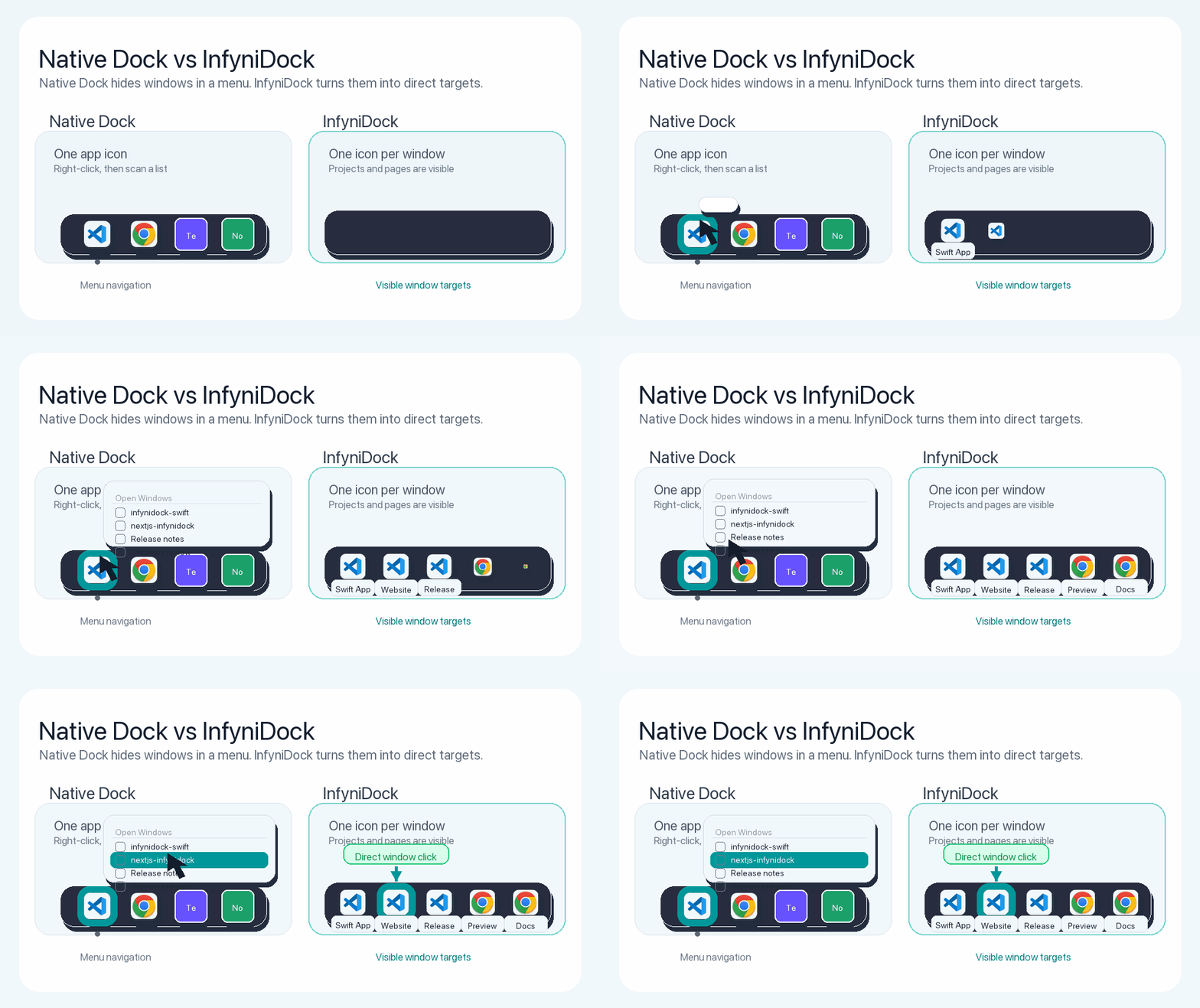
Dock comparison
Native Dock switches apps. InfyniDock switches the exact window.
The native macOS Dock is familiar and reliable. But when one app has several VS Code projects, Chrome profiles, Finder windows, or documents, app-level switching still leaves you searching. InfyniDock brings those windows into the Dock itself.
Native Dock
Great for launching apps and showing a familiar right-click menu. Window selection is usually one step deeper, which becomes slower when an app has many open windows.
- One icon usually represents one application.
- Window lists live in menus or system views.
- Best for simple app-launching workflows.
InfyniDock
Built for users who think in windows and projects. Individual windows can become visible Dock targets with labels, previews, hotkeys, Spaces support, and workspace automation.
- One app can expose multiple window targets.
- Click the VS Code project or Chrome window directly.
- Best for developers, researchers, and multi-window Mac users.
Common questions
How is InfyniDock different from the native macOS Dock?
The native Dock is excellent for launching apps and opening app menus. InfyniDock is designed for window-level switching: it can show individual windows as direct Dock targets, so users can jump to the exact VS Code project, Chrome window, Finder window, or document they need.
Can the native Dock show multiple windows for one app?
The native Dock can expose a window list through a right-click menu or system window controls. InfyniDock makes the workflow faster by placing individual windows directly in the Dock flow.
Should InfyniDock replace the native Dock for every Mac user?
Not necessarily. If you mostly launch apps and keep few windows open, the native Dock may be enough. InfyniDock is built for users who keep many windows, projects, displays, or Spaces active at the same time.