
INSIDE INFYNIDOCK · MAC PRODUCTIVITY
Why InfyniDock Makes Working on a Mac Easier
A closer look at window previews, Notch Dock, workspaces, plugins, and the details that make a busy desktop easier to use.
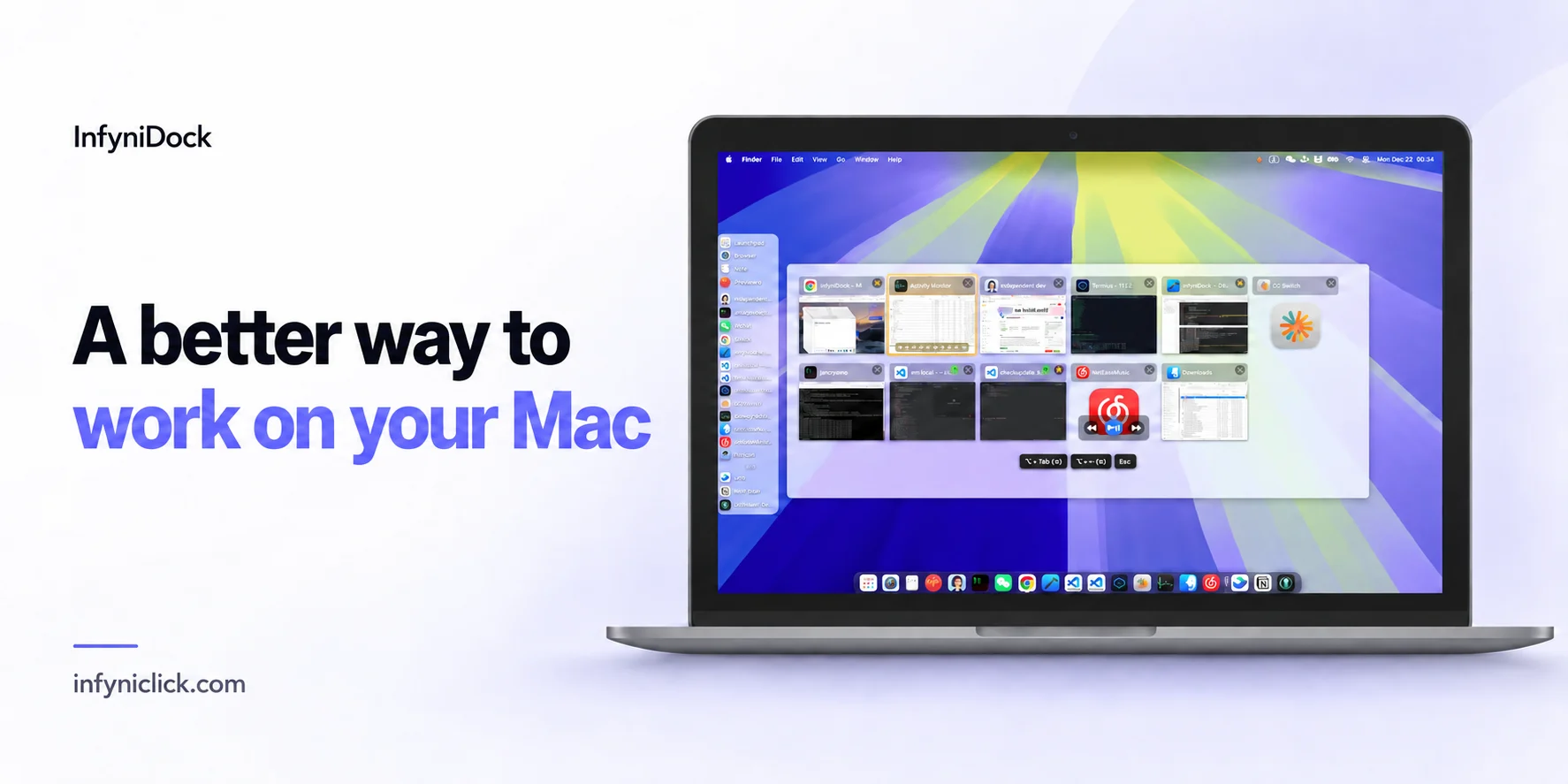
InfyniDock at a glance
InfyniDock is a Mac window manager and Dock companion that helps you find individual windows, organize related apps and workspaces, and keep everyday tools nearby. Choose Full Dock, FloatDock, or Notch Dock to suit the way you work. It supports macOS 13 and later and offers a 14-day free trial.
A busy Mac can become surprisingly difficult to navigate. Your editor is open, but so are two other projects. The browser window you need is somewhere behind a meeting, a document, and yesterday's research. You know what you want to work on. Getting back to it takes another round of clicking.
We build InfyniDock to make those everyday transitions easier. It gives individual windows a clearer place in your workflow, helps you organize related apps and tasks, and puts useful tools close to the work already on your screen.
Some people want a more capable Dock. Others want a shortcut that brings up the right window, then disappears. InfyniDock gives you room to choose. Here is what that means in practice, and why we keep working on it.
Find the exact window you need
An application icon tells you which app is running. When that app has several windows, you still need to identify the one you want.
InfyniDock makes those individual windows easier to recognize and activate. Live previews let you see the contents before switching, while window labels, tags, and active-window indicators help you keep track of your place. An app-window overview is useful when several windows belong to the same application.
Think of three Chrome windows: one for research, one for a client project, and one for personal browsing. A visual preview helps you choose the client project directly. The same idea applies to Finder folders, editor projects, terminal sessions, and documents.
That is the main advantage of window-level switching: the destination is the window you actually need for your next action.
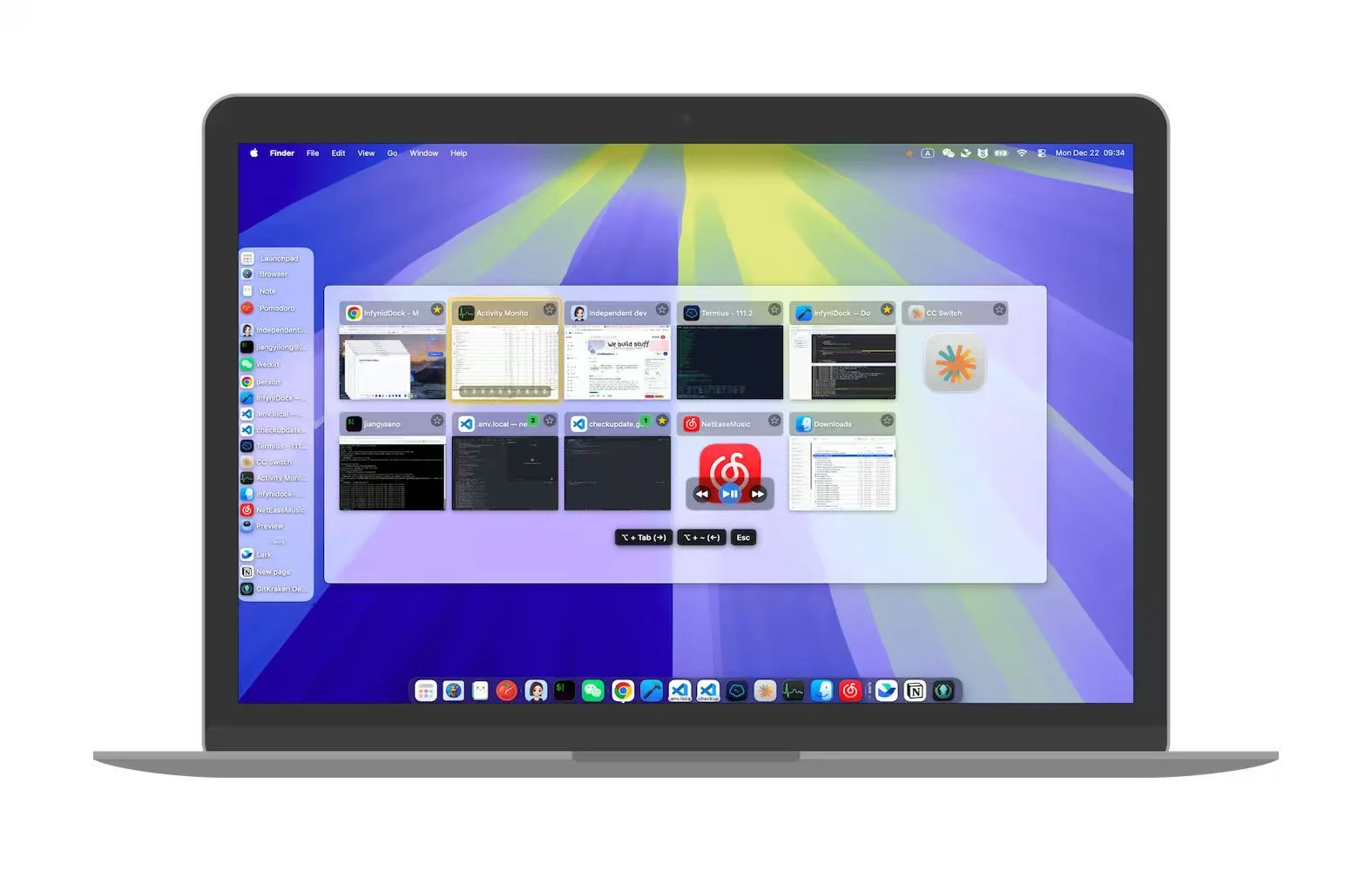
InfyniDock's visual window switcher, shown in a product screenshot.
Choose how you reach your windows
Your preferred way of working may change during the day. InfyniDock offers several ways to reach the same window context.
Full Dock gives you a persistent place for apps, individual windows, previews, and shortcuts. It suits people who like to keep their available work visible.
FloatDock brings up a floating visual switcher when you need it. With an Option + Tab workflow, you can move between windows without taking your hands away from the keyboard. A quick return is useful when you are alternating between an editor and its browser preview; holding the shortcut lets you choose among more windows. The FloatDock guide explains the workflow.
Notch Dock puts a compact window tray at the top of your screen. Hovering at the notch reveals recent windows, with search and previews to help you choose. On a display without a notch, the tray remains accessible through a menu-bar entry or shortcut. Notch Dock replaces the earlier Menu Dock experience.
You can use FloatDock or Notch Dock alongside the native macOS Dock. Trying InfyniDock does not require changing every part of a familiar setup.
Give related apps a shared home
Dock folders let you group apps by purpose. A development folder could hold your editor, terminal, browser, and database tools. A creative folder could collect your design apps and references.
Grouping gives an app a meaningful place. Instead of scanning a long row of icons, you can look for the kind of work you are about to do. It also keeps your everyday essentials separate from tools you only need for a particular task.
For people who use many apps but return to a few familiar combinations, this is a useful way to make the Dock easier to scan.
Return to an entire workspace
A project usually involves more than one window. Writing may require an outline, source material, and a preview. Debugging may involve an editor, terminal, browser, and documentation.
InfyniDock's Workspace Manager lets you group related windows, save their layout, and bring the group forward from one Dock item. You can return to the arrangement that supports the task, with less manual rearranging.
Dock folders and workspaces serve different needs. Folders organize your app collection. Workspaces organize the windows involved in a particular activity. Used together, they help you both start work and return to it after an interruption.
Work more comfortably across displays and Spaces
An external monitor gives you more room, but it also creates more places for a window to be hiding.
InfyniDock supports workflows across multiple displays and macOS Spaces. You can reach supported windows in different contexts, use Dock access across your setup, and choose behavior that suits each screen. A laptop display and a large external monitor do not have to use the same arrangement.
You can also move and activate a selected window on a chosen display. That is useful when preparing a presentation, moving a browser preview next to your editor, or bringing a reference onto the screen you are currently using.
The benefit is practical: more control over where your work appears, with less searching across the desktop. See the multi-monitor workflow for more detail.
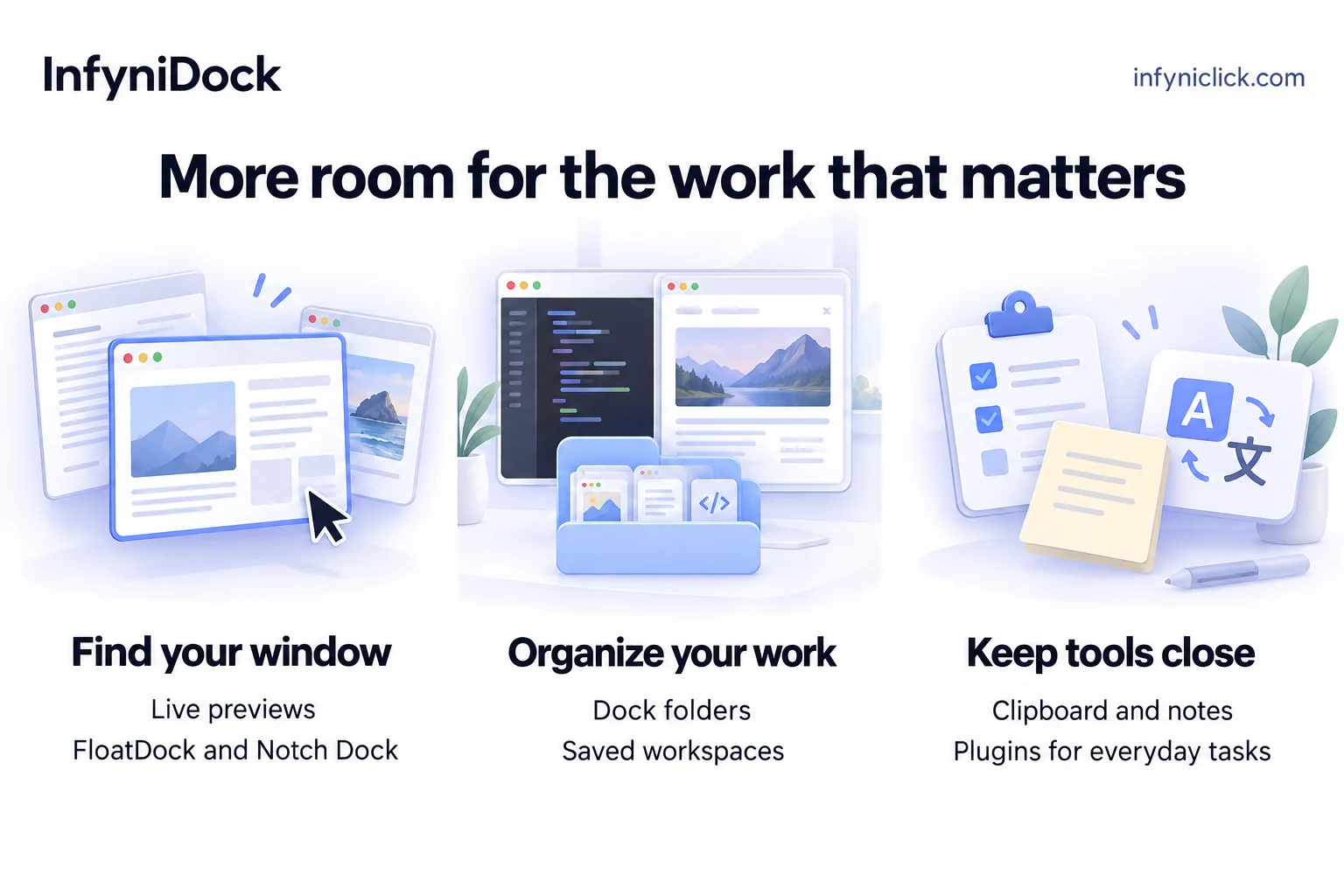
Conceptual illustration. The workflow in three parts: find a window, organize its context, and keep useful tools nearby.
Keep useful tools within reach
Many interruptions are small. You need something you copied earlier, a place for a quick thought, or a file from a folder. Opening another full application can pull attention away from the task you were doing.
InfyniDock's Plugin Store brings small tools into the Dock workflow. You can choose the ones that are useful to you:
- FastFinder helps you browse folders and reach files.
- Pasteboard lets you revisit copied text, links, and images.
- Note provides a floating place to capture a thought beside your work.
- Translator supports translation while typing in other apps, using your own API key.
- Browser offers a floating mini browser.
- Favorite keeps frequently used apps close by.
The redesigned store adds a featured area, a discovery grid, and individual plugin pages, making it easier to explore what is available. These tools extend the Dock around everyday actions you already perform.
Adapt the details to your habits
The small controls matter when you use a utility throughout the day.
InfyniDock includes custom window hotkeys, gesture and mouse-wheel switching workflows, Dock positioning, and appearance controls. Labels and colors help distinguish similar windows. Auto-hide and semi-hide options let you decide how much of the Dock stays visible. You can also keep a selected window on top when a reference, note, or dashboard needs to remain in view.
Privacy controls can blur previews for selected apps, giving you more control over what appears inside the switcher during a demonstration or recording. For users exploring automation, InfyniDock also offers an OpenClaw skill for window-control workflows.
You do not need to configure every option. Start with the interaction that removes a recurring annoyance, then adjust the rest as you learn what fits.
Improvements shaped by real use
New features are only part of building a useful Mac app. A preview that feels awkward, a badge that gets clipped, or a folder that responds at the wrong moment can affect the experience just as much.
Recent updates have refined Dock magnification, auto-hide and semi-hide behavior, folder previews, and transitions between neighboring icons. They have also addressed badge scaling and added clearer shortcut guidance. The release history shows both feature development and this ongoing maintenance.
User feedback helps us understand which details matter in actual work. Jaime Miguel described InfyniDock as:
“Best dock I have ever used.”
Other reviews discuss easier window switching, the usefulness of previews, and managing several displays. We value those experiences, alongside the bug reports and requests that show us where more work is needed. You can read the user reviews on our website.
We are continuing to refine existing features and explore new ideas. The direction is shaped by how people use their Macs, and we will share specific additions as they become ready.
Try it with your own work
InfyniDock is particularly useful when you keep several windows from the same app open, move between projects, or spread work across multiple monitors. Developers, designers, researchers, writers, and anyone juggling a busy desktop can try it against the tasks they already do.
It supports macOS 13 and later. Some appearance effects depend on the macOS version; native Liquid Glass requires macOS 26 or later.
There is a 14-day free trial, followed by a one-time lifetime license. Students can apply for a free lifetime license after verification. Current pricing and the student application details are on the InfyniDock website.
Start with your usual apps and windows. Try a preview before switching, collect related apps in a folder, or save the window arrangement for a task you repeat. That is a better way to judge a workflow tool than a feature list alone.
What is the one window-management problem you would most like us to solve next? Send us your feedback. We are listening.
Common questions
What is InfyniDock used for?
InfyniDock helps Mac users preview and switch to individual windows, group apps into Dock folders, restore saved workspace layouts, and use small tools such as clipboard history and notes within their Dock workflow.
Can I keep the native macOS Dock?
Yes. FloatDock and Notch Dock can run alongside the native macOS Dock. Full Dock is available for people who prefer a persistent Dock with individual windows and previews.
Does Notch Dock work on a Mac without a notch?
Yes. On a display without a notch, the window tray is accessible through a menu-bar entry or a keyboard shortcut.
Which macOS versions does InfyniDock support?
InfyniDock supports macOS 13 and later. Native Liquid Glass appearance requires macOS 26 or later.
Is InfyniDock free to try?
There is a 14-day free trial. Continued use requires a one-time lifetime license, and students can apply for a free lifetime license after verification. See the homepage for current pricing and student application details.
Sources & product notes
This overview is written by the InfyniDock team. Feature and release references were checked on September 24, 2026. Future features are still being explored; no release dates are promised.
- Current release notes and fixes
- Dock profiles and saved settings
- Notch Dock: current tray behavior and access
- Product guide: window controls, customization, and privacy previews
- Version 2.21.8: Notch Dock, Plugin Store, and panel improvements
- Version 2.21.6: Dock behavior, folder previews, and shortcut guidance
- Customer reviews published on the InfyniDock website
The window-switcher screenshot shows the product in use. The cover and workflow illustration are promotional artwork, not screenshots of every current feature.
Start with the windows you already use.
Try InfyniDock with your own apps, projects, and displays.
Download for Mac macOS 13+ · 14-day free trial