01
Right-click a window
Use the Dock item for the exact window you want, not only the app icon.

Activate on Display
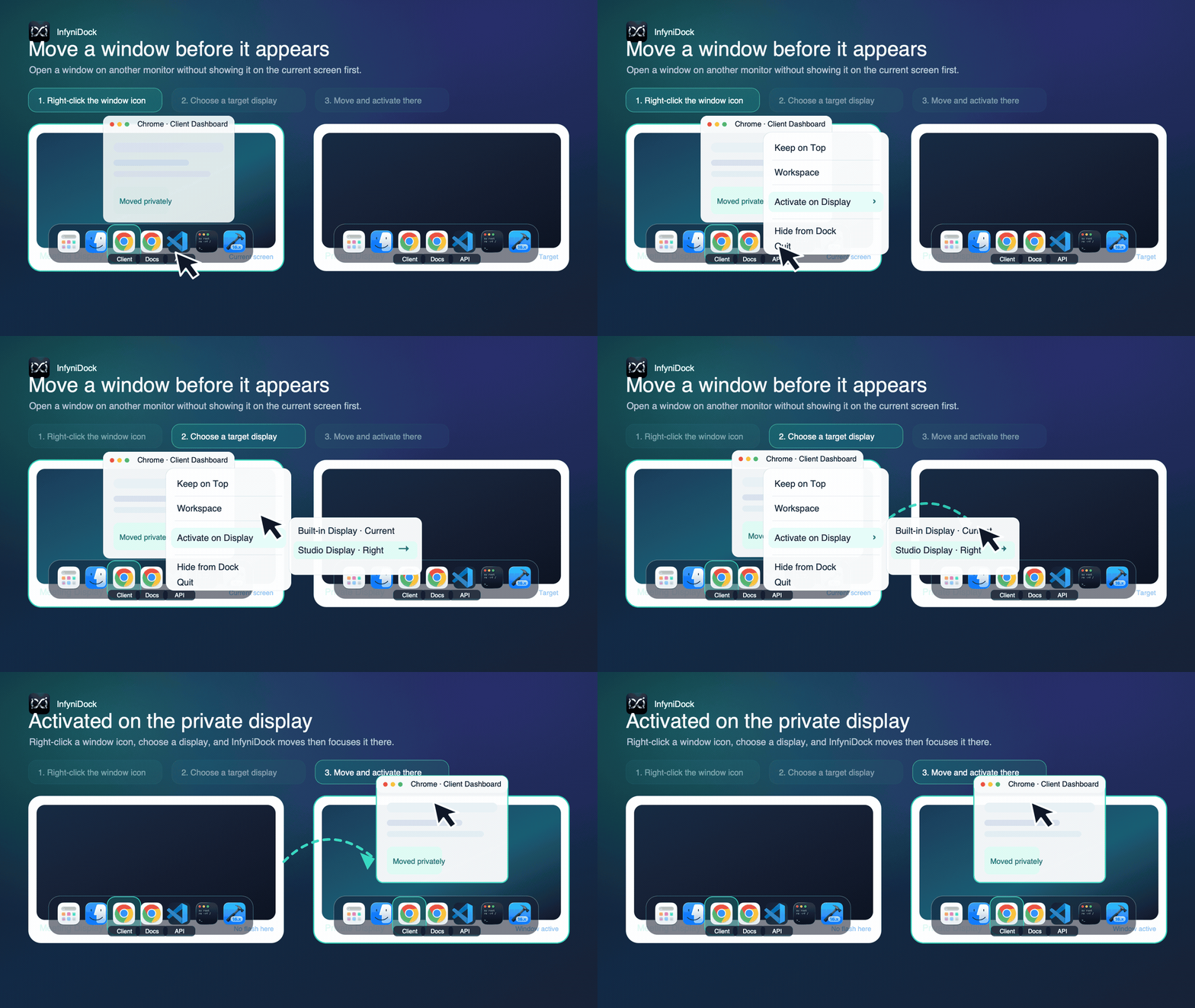
When you are sharing a screen or presenting in a meeting, opening the wrong window on the wrong monitor is awkward. InfyniDock lets you right-click a window icon, choose a target display, then move and activate that window there.
01
Use the Dock item for the exact window you want, not only the app icon.
02
Choose the built-in screen, an external monitor, or the display relative to the current window.
03
InfyniDock moves the window first, then focuses it on the selected monitor.
Why it matters
The native Dock usually activates first and leaves the final window placement to you. InfyniDock makes display choice part of the activation action, so the window can land where it belongs.
Yes. InfyniDock can expose an Activate on Display menu for a window, allowing users to choose a target monitor and activate the window there.
This is useful during meetings, screen sharing, demos, or any workflow where you want a window to open on a private monitor instead of appearing on the display other people can see.
No. This feature is focused on choosing where a window appears before focus. InfyniDock also supports workspace layouts for restoring larger groups of windows.