A uBar alternative for Mac users who need exact window switching.
uBar is a strong choice if you want a Windows-style taskbar on macOS. InfyniDock is different: it focuses on exact windows, live previews, and three shapes for different workflows: Notch Dock, FloatDock, and Full Dock.
Try an alternative alongside your existing workflow
uBar also provides window previews, window entries, and multiple-monitor controls. The useful comparison is how you want to reach your windows, not whether uBar can manage them.
STEP 1
Choose a representative task
Open the browser, Finder, editor, or document windows you normally use. Keep the same set of windows when comparing tools.
STEP 2
Try the interaction you prefer
Compare uBar’s persistent taskbar with InfyniDock’s full Dock, temporary FloatDock selector, and Notch Dock tray. Try the same window-selection task in each interface.
STEP 3
Check your display setup
Test the monitors and Spaces you actually use. Review each app’s display settings and shortcut conflicts before deciding which behavior suits you.
STEP 4
Recreate only the organization you need
Configure InfyniDock Dock folders, profiles, and workspaces deliberately. This guide does not describe an automatic importer for uBar settings or licenses.
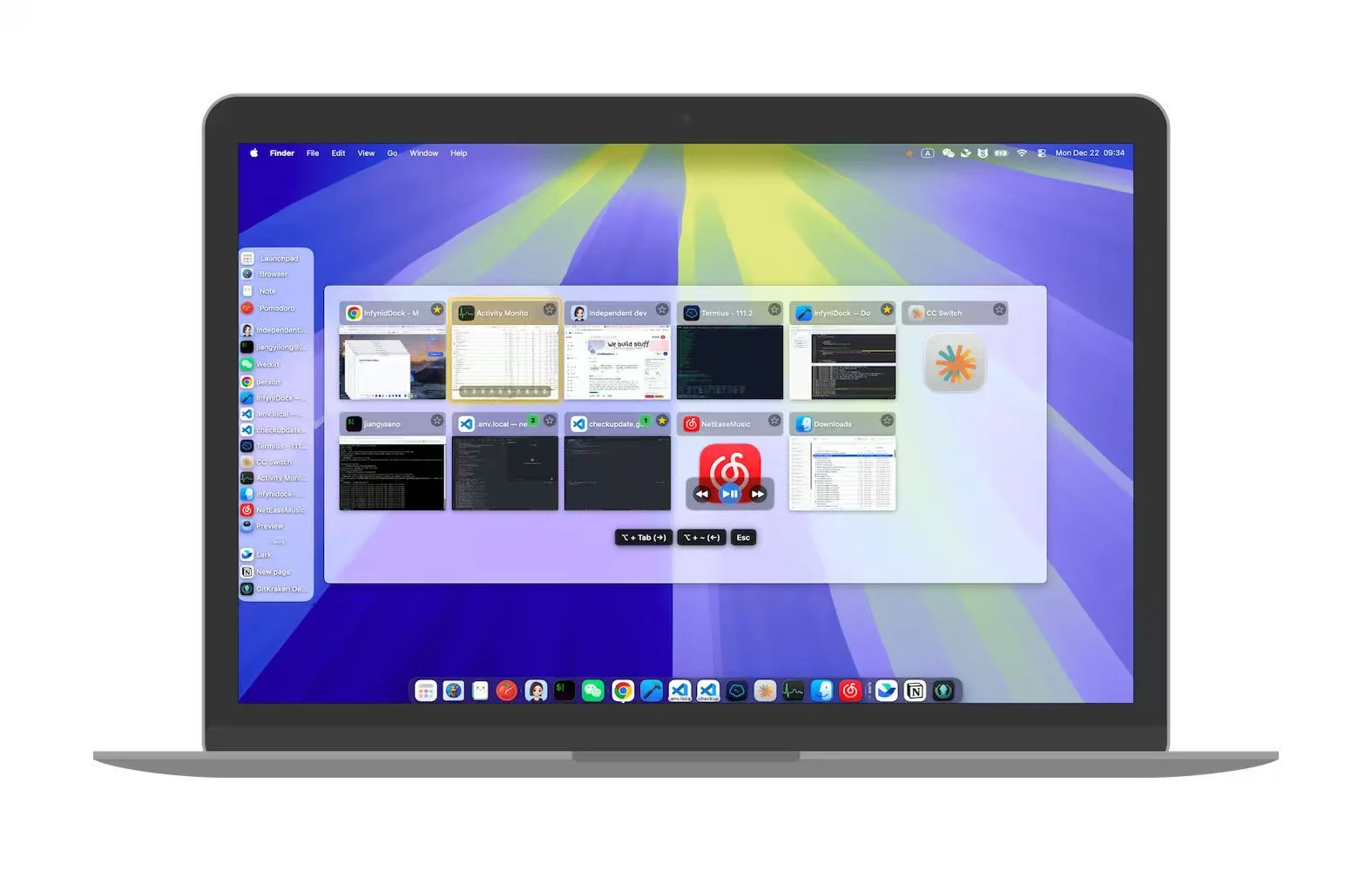
A product screenshot showing individual app windows in the selector. Appearance and available controls vary by app version and settings.
This comparison is written by the InfyniDock team. uBar’s official feature information was checked on September 24, 2026; this is not an independent performance benchmark.
A taskbar shape is useful, but not every Mac user wants to replace the Dock.
Many people look for uBar because the native Dock is too app-level. But some users do not want a full taskbar; they want a lighter way to find specific Chrome, Finder, editor, Terminal, and chat windows.
The InfyniDock workflow
Use a window-first Dock companion instead of only a taskbar.
InfyniDock can run from the menu bar, appear as a temporary floating switcher, or become a full Dock. The common layer is exact window switching: preview the target window and activate it directly.
Where InfyniDock differs from uBar
Notch Dock
Open the Notch Dock window tray from the notch, its menu-bar icon, or a configured shortcut.
FloatDock
Call a temporary visual switcher with shortcuts, gestures, or mouse-wheel workflows.
Window-first workflows
Treat individual app windows as first-class targets instead of only showing applications.
uBar vs InfyniDock
uBar
Users who want a Windows-style taskbar metaphor on macOS.
A stronger visual replacement for the Dock.
InfyniDock
Users who want window-level switching with a menu bar, floating, or full Dock shape.
Compare its temporary selectors, Dock folders, profiles, and plugin workflow with uBar’s taskbar.
Best for
Mac users with many windows from the same apps
Users who want a Dock companion instead of only a full taskbar
Developers, designers, support users, and researchers with many work contexts
Not the best fit for
Users who only want a Windows taskbar clone
Users who only launch a few apps and rarely switch between many windows
InfyniDock can be used as an alternative to uBar, but it is not a clone. uBar is closer to a Windows-style taskbar. InfyniDock focuses on exact window switching, previews, Notch Dock, FloatDock, Full Dock, and workspaces.
Which is better for keeping the native Dock?
Notch Dock or FloatDock can provide an on-demand window selector alongside the native Dock.
Which is better for many Chrome or Finder windows?
InfyniDock is designed around exact windows, so it is a strong fit when one app has many open windows.