The problem
Command-Tab switches VS Code, not the project you meant.
When several VS Code windows are open, app-level switching still leaves you searching for the exact repository or branch.

VS Code windows on Mac
Choose File → New Window in VS Code, then open a project folder in that window. Repeat for a second project. You can keep projects in separate windows, use the Window menu to choose one, or use InfyniDock previews when several projects look alike.
By the InfyniDock team · Updated
Separate windows are useful when each project needs its own editor context. A multi-root workspace is another option if you want several folders in one window.
STEP 1
Open a project folder in VS Code. Keep an identifiable file open so that the project is easy to recognize in its title and preview.
STEP 2
Choose File → New Window, then File → Open Folder in that new window. Select your second project. This keeps its editor context separate from the first project.
STEP 3
On macOS, first run “Shell Command: Install code command in PATH” from VS Code’s Command Palette. Then replace the example folder below with your actual project path. The --new-window option opens it in a new window.
code --new-window ~/projects/my-projectSTEP 4
Use VS Code’s Window menu to select a window by its title. With InfyniDock, reveal the VS Code previews and select the project you recognize, or use the configured FloatDock shortcut. A preview selects a window; editor tabs stay inside it.
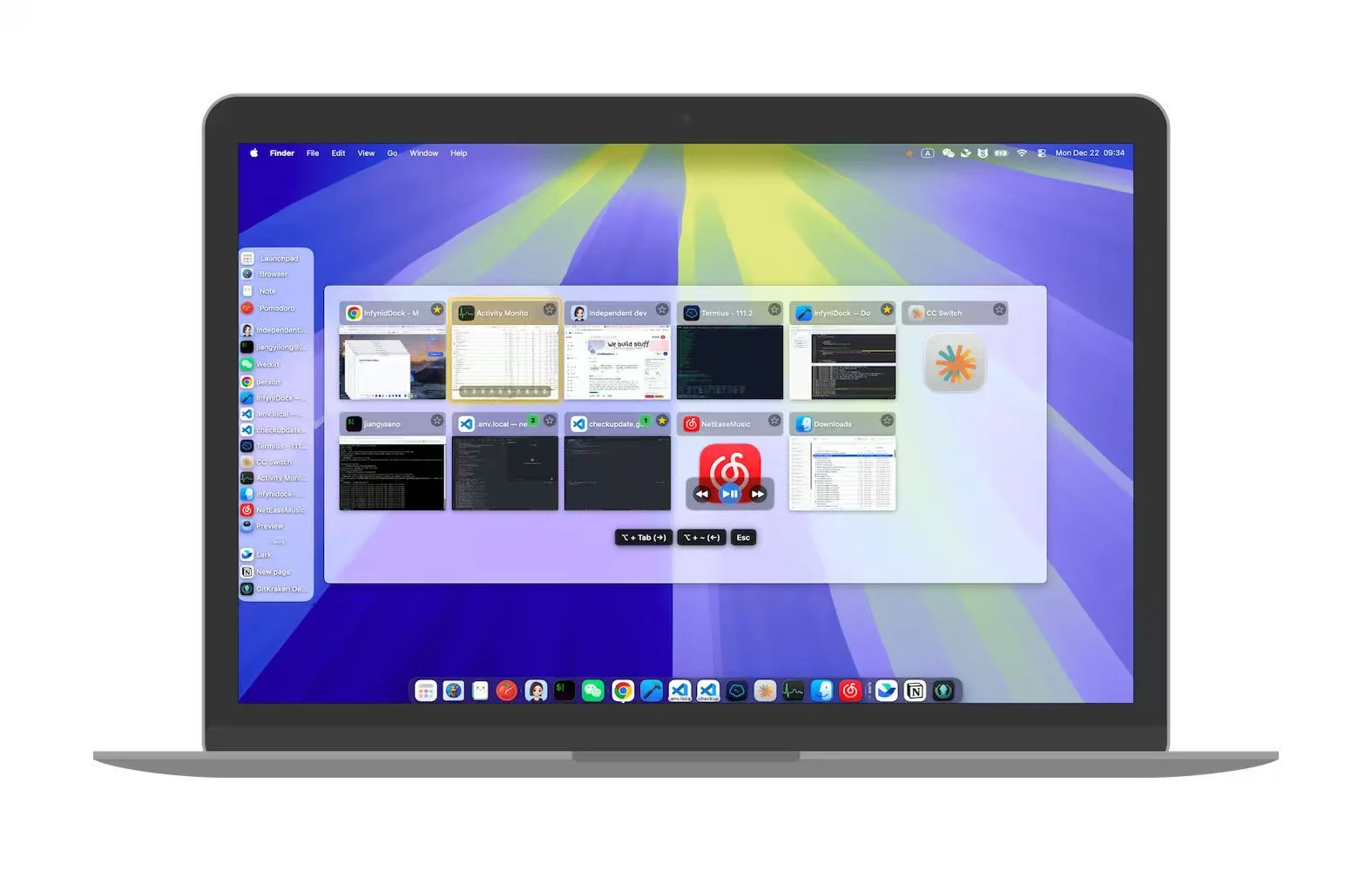
A VS Code multi-root workspace combines folders inside one editor window. An InfyniDock workspace organizes desktop windows. Neither creates a Git branch or changes a repository automatically.
The problem
When several VS Code windows are open, app-level switching still leaves you searching for the exact repository or branch.
The InfyniDock workflow
InfyniDock helps preview and activate the exact VS Code window, then keep it together with Terminal, Chrome, docs, and AI assistant windows in a broader workflow.
Preview windows before switching to avoid opening the wrong codebase.
Keep VS Code near ChatGPT, Claude, Codex, Terminal, and docs.
Group project windows into recurring coding contexts.
Yes. InfyniDock focuses on exact window switching, which is useful when VS Code has multiple project windows open.
It can complement Command-Tab by adding window previews, exact activation, FloatDock, and workspace context.
Yes. AI coding often adds assistant, browser, terminal, and preview windows, making exact window switching more important.