The problem
A Dock icon alone does not show which window you need.
One app can contain several documents, projects, chats, browser contexts, or terminals. Without previews, the user often guesses.

Dock window previews on Mac
Window previews are useful when many app windows look similar. InfyniDock adds a visual way to identify the target window before activating it.
By the InfyniDock team · Updated
Use two ordinary windows first so you can check permissions and switching before trying a larger desktop.
STEP 1
Open two Finder locations or browser windows with different content. Keep both on your current desktop for this first check.
STEP 2
Follow InfyniDock’s setup prompts. In macOS System Settings → Privacy & Security, review Accessibility for window control and Screen Recording for previews. The recording permission label may include system audio on newer macOS versions.
STEP 3
Move to the relevant app or window entry in InfyniDock and reveal its previews. Choose the thumbnail or title of the second window, then repeat to return to the first.
STEP 4
Confirm permissions and any restart requested by macOS. Check whether preview privacy controls intentionally blur the app. Try an ordinary Finder window to distinguish a general setup issue from one app’s behavior.
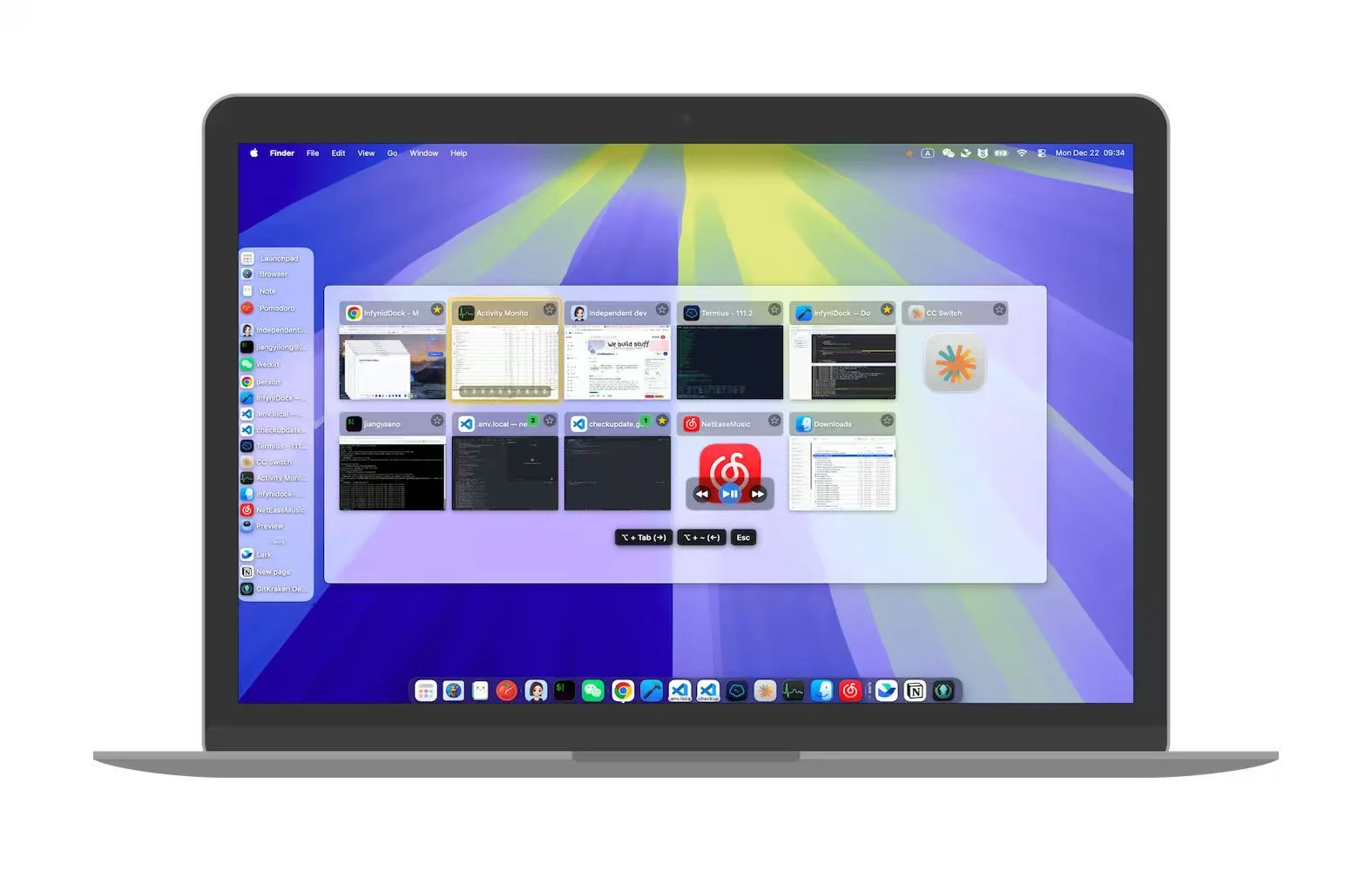
These steps apply to InfyniDock’s Dock and window selector. Installing it does not mean every native macOS Dock interaction changes. Protected content, app behavior, and permission settings can affect previews.
The problem
One app can contain several documents, projects, chats, browser contexts, or terminals. Without previews, the user often guesses.
The InfyniDock workflow
InfyniDock helps users preview windows and choose the right one from Notch Dock, FloatDock, or Full Dock workflows.
Tell docs, dashboards, local previews, and research apart.
Identify the correct VS Code, Xcode, or project window.
Find the right folder or document before switching.
macOS has some built-in window access, but InfyniDock provides a more window-focused preview and switching workflow.
Yes, it can be considered a DockMate alternative for users who want previews plus exact switching, workspaces, FloatDock, and Notch Dock.
Yes. Previews are especially useful when multiple browser windows look similar by app icon alone.