The problem
Terminal context is easy to lose.
When many terminals are open, Command-Tab only brings Terminal forward. You still need to find the right session or log output.

Terminal windows on Mac
In Terminal, press Command–N for a new window or Command–T for a new tab. Use separate windows when you want sessions side by side, and tabs when you prefer one compact window. Once several windows are open, InfyniDock helps you recognize and activate the one you need.
By the InfyniDock team · Updated
Start with the controls built into Terminal. You do not need InfyniDock to open a window or tab.
STEP 1
Activate Terminal and press Command–N to open a separate window. Command–T opens a tab inside the current window instead. Repeat the action for additional sessions.
STEP 2
Keep one window for your local development service and another for logs or a shell. Use meaningful window titles through Terminal’s title controls. Separate windows can sit side by side; tabs share a single window.
STEP 3
Use Terminal’s Window menu to select an open window. For a visual choice, complete InfyniDock’s permission setup, reveal the Terminal window previews, and select the matching title or thumbnail.
STEP 4
Open your editor and documentation beside the terminal windows. Try the configured FloatDock shortcut or Notch Dock tray to move between them. Start on one desktop before testing additional displays or Spaces.
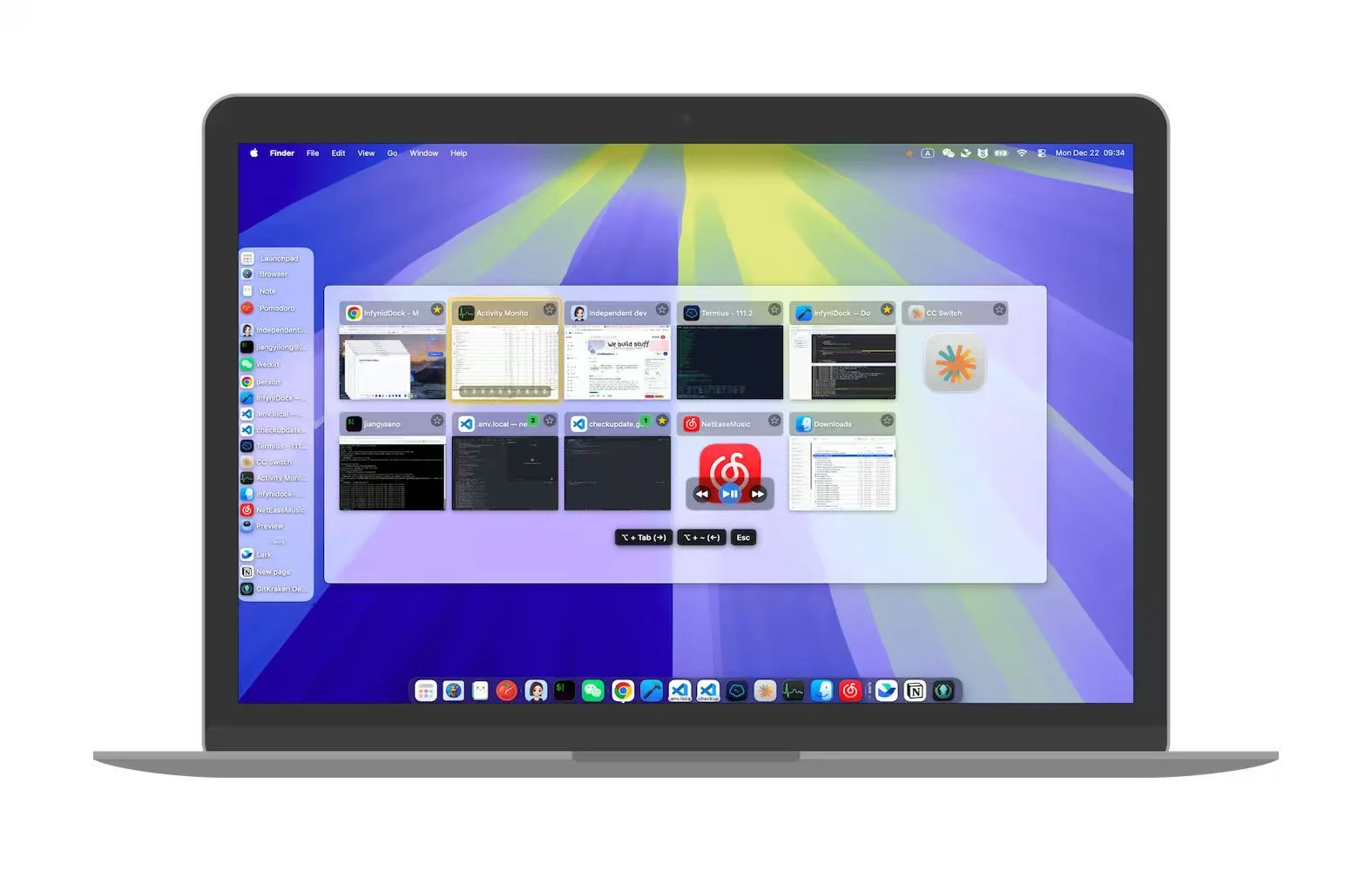
InfyniDock selects application windows. It does not create shell sessions, expose each terminal tab as a separate window, or replace Terminal, SSH, or tmux. Accessibility permission enables window control; Screen Recording permission enables previews.
The problem
When many terminals are open, Command-Tab only brings Terminal forward. You still need to find the right session or log output.
The InfyniDock workflow
InfyniDock gives terminal-heavy workflows a visual layer for exact window switching, especially when paired with editor, browser, and AI assistant windows.
Find server, watcher, test, and package manager windows faster.
Preview and select the right remote session or deployment window.
Keep build output, logs, and error traces easier to reach.
Yes. InfyniDock is useful when Terminal has several separate windows or sessions that need visual identification.
It solves a different problem. Tabs work inside one Terminal window. InfyniDock helps when terminal contexts are separate windows across your desktop.
Yes. AI coding often creates multiple terminals, previews, editors, docs, and assistant windows, making exact switching useful.